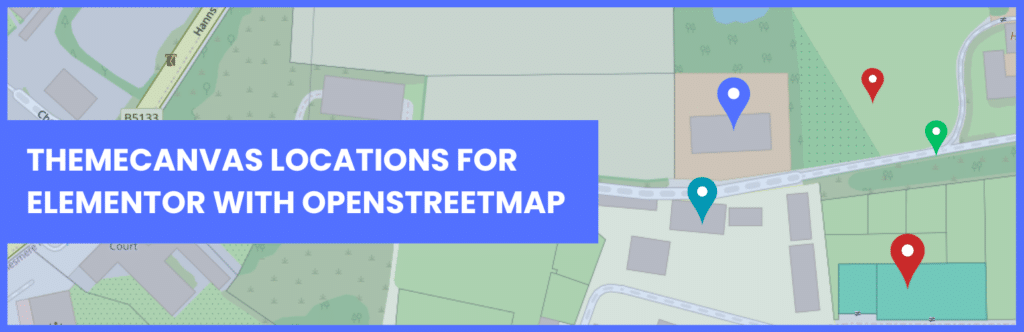
How to Add OpenStreetMap to Elementor Without Google Maps, an API Key, or Any Costs
If you’ve ever tried to add a Google Map to a WordPress site, you’ll know the frustration. You need a Google account, a billing account, a credit card on file, an API key, and then you need to hope your traffic never spikes enough to trigger unexpected charges. For something as simple as showing your business location on a web page, it’s an awful lot of hoops to jump through.
There’s a better way — and it’s completely free.
What Is OpenStreetMap and Why Should You Use It?
OpenStreetMap (OSM) is a free, open-source mapping platform built collaboratively by contributors around the world — think of it as the Wikipedia of maps. It’s used by thousands of websites and applications globally, including major brands and government organisations.
Unlike Google Maps, OpenStreetMap:
- Requires no API key — there’s nothing to set up, no developer console, no credentials
- Has no billing — there’s no credit card required and no usage charges
- Is GDPR friendly — no user tracking or data collection
- Is free forever — the data is open source and always will be
For WordPress site owners and developers, this makes it an incredibly attractive alternative to Google Maps, particularly for small businesses, agencies, and developers managing multiple client sites.
The Problem With Google Maps on WordPress
Google Maps used to be straightforward. You’d grab an embed code and drop it on your page. Those days are gone.
Since Google introduced mandatory API keys and billing requirements, adding a map to a WordPress site has become unnecessarily complicated:
- API key setup requires a Google Cloud account and billing details
- Free tier limits mean high-traffic sites can incur charges
- Key management is an ongoing headache — keys expire, get compromised, or hit limits
- Client handover is painful — do you leave your key on the site? Give them their own? What happens when it breaks?
For agencies managing dozens of client sites, this is a real operational problem. For small business owners just wanting to show their address on a contact page, it’s an entirely disproportionate barrier.
Introducing ThemeCanvas Locations for Elementor
ThemeCanvas Locations for Elementor is a WordPress plugin that brings the power of OpenStreetMap directly into the Elementor page builder — with zero API key requirement, zero billing setup, and zero ongoing costs.
It uses Leaflet.js, the leading open-source JavaScript mapping library, to render fast, beautiful, fully interactive maps on any Elementor page.
Free Version Features
The free version, available on WordPress.org, includes everything you need to get started:
- Add unlimited location markers manually within the Elementor editor
- Choose from 4 map styles — Standard, Dark, Humanitarian, and Terrain
- Custom pin colours per location
- Rich popup content with HTML support
- Fully responsive on all devices
- Marker clustering for multiple locations
- Lightweight — assets only load when the widget is on the page
- GDPR compliant — no tracking, no cookies, no external data collection
Pro Version Features
The Pro version unlocks dynamic location loading and advanced management tools:
- Dynamic Locations — pull map markers automatically from WordPress posts or custom post types
- Built-in Locations CPT — manage locations as content with a dedicated post type
- Visual Map Metabox — set coordinates visually with address search, autocomplete, and a draggable marker — no manual lat/lng lookup needed
- Address Geocoding — type a postcode or address and let the plugin find the coordinates
- Post Type Manager — add location functionality to any existing post type including WooCommerce Products
- ACF Integration — works seamlessly with Advanced Custom Fields
- Advanced Query Controls — include, exclude, and filter by taxonomy
- Per-location pin colours stored in post meta
How to Add an OpenStreetMap to Your Elementor Page
Getting started with the free version takes less than five minutes.
Step 1: Install the Plugin
- In your WordPress admin, go to Plugins → Add New
- Search for ThemeCanvas Locations for Elementor
- Click Install Now then Activate
Step 2: Edit a Page With Elementor
Open any page in the Elementor editor. In the widget search panel, type ThemeCanvas Locations and drag the widget onto your page.
Step 3: Add Your Location
In the widget settings, set the Location Source to Manual and click Add Location. You’ll need to enter a latitude and longitude for each marker.
Finding your coordinates is simple:
- Open OpenStreetMap.org
- Search for your address
- Right-click the exact spot on the map
- Select Show address
- Copy the coordinates from the sidebar
- Paste them into the widget
Step 4: Customise and Publish
Set your map style, adjust the zoom level, customise your popup content, and hit publish. That’s it — a fully interactive OpenStreetMap on your Elementor page with no API key, no billing account, and no ongoing costs.
Who Is This For?
Small businesses — show your location on a contact or about page without the complexity of Google Maps setup.
WordPress agencies — stop managing Google API keys across dozens of client sites. Deploy maps that just work, forever.
WooCommerce stores — use the Pro version to map your product stockists or store locations dynamically from your Products post type.
Developers — clean, well-documented code with WordPress coding standards compliance, developer hooks, and extensible architecture. Full REST API support.
Anyone frustrated with Google Maps billing — if you’ve ever had an unexpected API charge or spent an afternoon debugging a broken map key, this is built for you.
OpenStreetMap vs Google Maps for WordPress — A Quick Comparison
| OpenStreetMap (ThemeCanvas) | Google Maps | |
|---|---|---|
| API Key Required | ❌ No | ✅ Yes |
| Billing Account Required | ❌ No | ✅ Yes |
| Free to Use | ✅ Always | ⚠️ Limited free tier |
| GDPR Friendly | ✅ Yes | ⚠️ Requires consent |
| Elementor Integration | ✅ Native widget | ⚠️ Third party plugins |
| Custom Styling | ✅ 4 built-in themes | ✅ Extensive |
| Dynamic Locations (CMS) | ✅ Pro version | ✅ Various plugins |
Frequently Asked Questions
Do I need any coding knowledge? Not at all. The free version is entirely managed within the Elementor editor. The Pro version adds a visual map interface for setting coordinates — just type an address and the plugin does the rest.
Will it work with my theme? Yes — as long as you have Elementor installed (free version is fine), it works with any WordPress theme.
Is it really free to use OpenStreetMap? Yes. OpenStreetMap is open-source and free. There are no API keys, no usage limits, and no billing. The ThemeCanvas free plugin is also free. The Pro version is a paid upgrade for advanced features.
What happens if I have lots of locations? The plugin includes marker clustering, which groups nearby markers together automatically. This keeps performance fast even with 100+ locations.
Is it GDPR compliant? Yes. The plugin collects no user data, sets no cookies, and makes no tracking requests. Map tiles are loaded from OpenStreetMap’s servers, which is standard practice and covered in most privacy policies.
Can I use it without Elementor Pro? Yes — only the free version of Elementor is required.
Get Started Today
The free version is available now on WordPress.org — search for ThemeCanvas Locations for Elementor or download it directly below.
The Pro version unlocks dynamic locations, the visual metabox, address geocoding, and advanced query controls — ideal for agencies, developers, and anyone managing locations as content.
Download Free on WordPress.org
Upgrade to Pro — from £24/year
Built by Jonny Quinn — a WordPress developer and agency owner who got fed up managing Google Maps API keys across client sites and decided to build something better.