Dynamic Locations mode allows you to automatically load location markers from WordPress posts or custom post types. This is ideal for displaying locations that are managed as content, enabling you to add/edit locations from the WordPress admin without touching the Elementor page.
PRO FEATURE
Setting Up Dynamic Mode
Step 1: Set Location Source
In the widget settings, set Location Source to Posts.

Step 2: Select Post Type
Choose which post type contains your location data:
- Locations (plugin’s built-in CPT – recommended)
- Posts (WordPress default)
- Pages
- Any Custom Post Type (Products, Events, etc.)
Step 3: Field Mapping
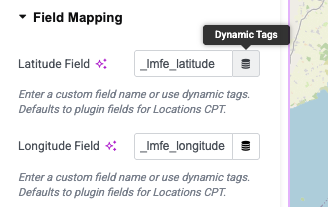
Tell the plugin which custom fields contain the latitude/longitude data:
Using Plugin Fields (Automatic)
If you’re using the plugin’s built-in CPT or have enabled the metabox on your post type, the fields will auto-populate to:
- Latitude Field:
_lmfe_latitude - Longitude Field:
_lmfe_longitude
Using Custom Fields (Manual)
If you’re using your own custom fields (e.g., via ACF or Metabox.io):
- Enter your latitude field name (e.g.,
location_lat) - Enter your longitude field name (e.g.,
location_lng)
Using Elementor Dynamic Tags
You can also use Elementor’s dynamic tag system:
- Click the dynamic tag icon next to the field input
- Select your data source (ACF Field, Metabox Field, etc.)
- Choose the field containing coordinates
Query Settings
Control which posts are displayed as map markers:
Posts Per Page
Set the maximum number of locations to display. Use -1 for unlimited.
Order By
Sort locations by:
- Date: Newest or oldest first
- Title: Alphabetically
- Random: Different order on each page load
- Menu Order: Custom order (if post type supports it)
Advanced Query Options
Displaying Multiple Post Types
You can display locations from multiple post types on a single map:
- In the widget settings, click the Post Types field
- Select multiple post types (e.g., “Stores”, “Offices”, “Branches”)
- The map will display all locations from all selected types
Include Specific Posts
To show only specific locations on your map:
- Find the post IDs you want to include:
- Go to your WordPress admin → Locations (or Posts, etc.)
- Hover over a post – the ID appears in the URL (e.g.,
post=123) - Or check the “Coordinates” column for the ID
- In the widget, enter the IDs in Include Specific Posts
- Example:
123, 456, 789
Exclude Specific Posts
To hide certain locations from the map:
- Find the post IDs you want to exclude (same method as above)
- Enter the IDs in Exclude Specific Posts
- Example:
999(to hide post ID 999)
Filter by Taxonomy
Limit results to specific terms from a selected taxonomy (optional):
- Select a taxonomy in Taxonomy
- Enter term IDs or slugs in Terms (comma-separated)
- Choose Include or Exclude in Taxonomy Filter Type
Example Queries
Show All Stores + All Offices
Post Types: Stores, Offices
Posts Per Page: -1
Order By: Title
Order: ASC
This displays all locations from both CPTs, alphabetically sorted.
Show Specific Locations Only
Post Types: Stores
Include Posts: 123, 456, 789
Posts Per Page: (ignored when using Include)
This displays only the 3 specified posts, in the order of the IDs entered.
Show All Except Hidden Locations
Show Only Locations in a Taxonomy
Post Types: Locations
Taxonomy: location_category
Terms: london, manchester
Taxonomy Filter Type: Include
This displays only locations tagged with those terms.
Post Types: Locations
Exclude Posts: 999
Posts Per Page: 50
Order By: Date
Order: DESC
This displays up to 50 locations (newest first), excluding post ID 999.
Popup Content Options
Control what displays in location popups:
Title Field
The field to use for the popup title. Options:
- Post Title: Uses the post’s main title (default)
- Custom Field: Enter a field name to use instead
- Dynamic Tag: Use Elementor dynamic tags
Popup Content
What to display in the popup body:
- Post Excerpt: Show the post excerpt
- Custom Field: Display a specific custom field
- None: Title only
Example Popup Configuration
Title Field: post_title
Popup Content: Post Excerpt
Show Featured Image: Yes
Link to Post: Yes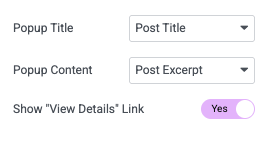
Advanced Features
Custom Pin Colors (Pro)
Each location can have a unique marker color. If you’ve set custom pin colors in the metabox, they’ll automatically be applied to the map markers.
Conditional Display
Use Elementor’s native conditions to show/hide maps based on:
- User login status
- User roles
- Archive type
- Custom conditions

Sales
Lorem ipsum dolor sit amet, consectetur adipiscing elit. Ut elit tellus, luctus nec ullamcorper mattis, pulvinar dapibus leo.

Help & support
Lorem ipsum dolor sit amet, consectetur adipiscing elit. Ut elit tellus, luctus nec ullamcorper mattis, pulvinar dapibus leo.

Article & News
Lorem ipsum dolor sit amet, consectetur adipiscing elit. Ut elit tellus, luctus nec ullamcorper mattis, pulvinar dapibus leo.