
PRO FEATURE
The Location Coordinates metabox provides a visual, user-friendly interface for setting location coordinates. Instead of manually looking up lat/lng values, you can search for addresses, drag markers, or use your browser’s geolocation.
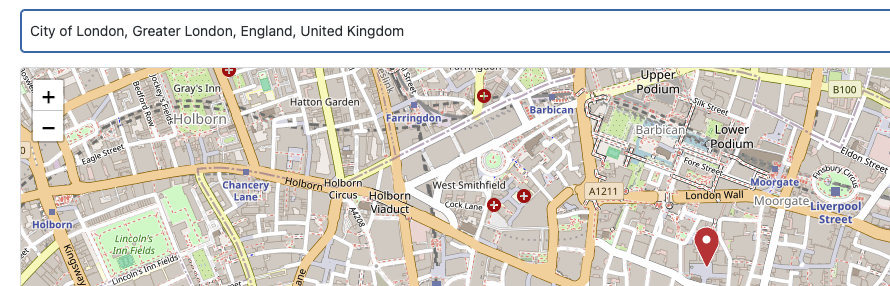
Metabox Features Overview
- Interactive Leaflet map preview
- Address/postcode geocoding search
- Autocomplete address suggestions
- Draggable marker
- Click-to-place marker
- “Use My Location” browser geolocation
- Manual lat/lng coordinate entry
- Custom pin color picker
Using the Visual Map Interface
Method 1: Address Search (Recommended)
The easiest way to set a location:
- Type an address or postcode in the search field
- Select from autocomplete suggestions (or press Enter)
- Map zooms to the location and places a marker
- Drag the marker to fine-tune the exact position
- Coordinates auto-update in the fields below
Method 2: Click on Map
Click anywhere on the map to place the marker:
- Zoom in to your desired area using the zoom controls
- Pan by dragging the map
- Click the exact location where you want the marker
- Coordinates update automatically
Method 3: Drag Marker
Fine-tune positioning by dragging:
- Click and hold the existing marker
- Drag it to the desired position
- Release to drop
- Coordinates update in real-time
Method 4: Use My Location
Quickly center on your current location:
- Click the Use My Location button
- Grant location permission in your browser (if prompted)
- Map centers on your current GPS coordinates
- Marker is placed at your location
Method 5: Manual Entry
Enter coordinates directly if you already know them:
- Type latitude in the Latitude field (e.g.,
51.5074) - Type longitude in the Longitude field (e.g.,
-0.1278) - Marker moves to the entered coordinates
- Map pans to show the marker
Address Geocoding
How Geocoding Works
The plugin uses the free Nominatim API (by OpenStreetMap) to convert addresses to coordinates:
- You type an address or postcode
- Plugin sends request to Nominatim
- Nominatim returns matching locations
- Map updates with the result
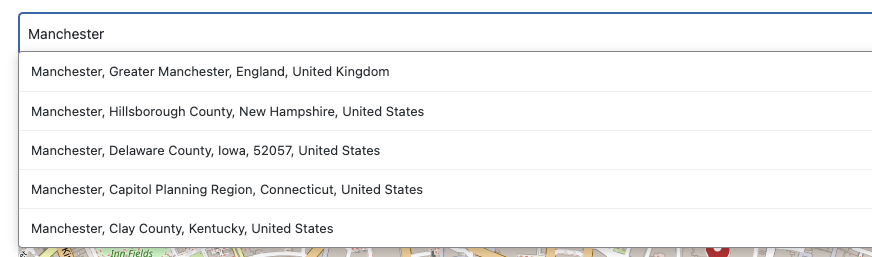
Autocomplete Suggestions
As you type, suggested addresses appear below the search field:
- Shows up to 5 matching results
- Click any suggestion to select it
- Appears after typing at least 3 characters
- Debounced to avoid excessive requests (500ms delay)
Supported Search Formats
You can search for:
- Postcodes: SW1A 2AA, 10001, etc.
- Full Addresses: 10 Downing Street, London
- Landmarks: Eiffel Tower, Big Ben
- Cities: London, New York
- Streets: Oxford Street, London (less precise)
Rate Limiting
Nominatim has a fair use policy of 1 request per second:
- Autocomplete is debounced (waits 500ms after you stop typing)
- Manual searches respect the 1 req/sec limit
- Results are cached for 24 hours to reduce requests
Custom Pin Colors
Each location can have a unique marker color on the frontend map:
Setting Pin Color
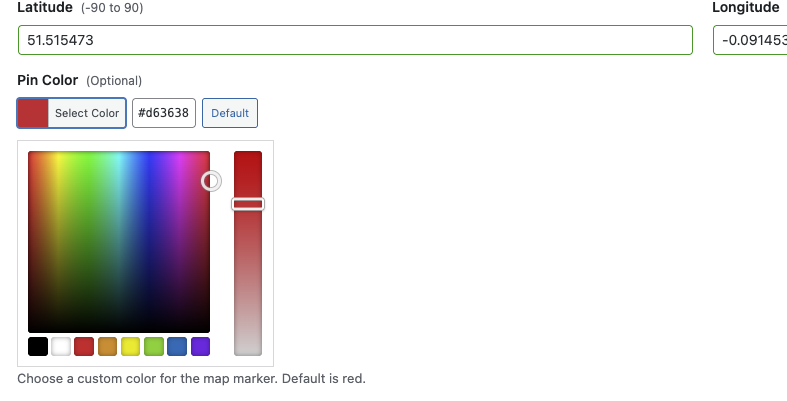
- In the metabox, find the Pin Color field
- Click to open the WordPress color picker
- Choose a color or enter a hex code
- Marker preview updates with the chosen color
- Save the post to apply the color
Using Custom Colors
Color-code locations by category:
- Blue: Main offices
- Green: Retail stores
- Orange: Warehouses
- Red: Service centers
The custom colors automatically apply when using Dynamic Locations mode in the widget.
Preview Links
Once coordinates are set, a preview link appears at the bottom of the metabox:
- Preview on OpenStreetMap – Opens location in new tab
- Useful for verifying the correct location
- Shows surrounding area and landmarks
Saving Coordinates
Coordinates are saved as WordPress post meta when you save the post:
_lmfe_latitude– Hidden field (underscore prefix)_lmfe_longitude– Hidden fieldlmfe_pin_color– Visible in Custom Fields (no underscore)
Troubleshooting the Metabox
Map Not Loading
If the map doesn’t appear:
- Check browser console for JavaScript errors
- Ensure Leaflet.js is loading (check network tab)
- Disable other plugins that might conflict
- Clear browser cache
Search Not Working
If address search isn’t returning results:
- Check your internet connection
- Try a more specific search (include city/country)
- Wait a moment if you’ve searched too quickly (rate limiting)
- Check if Nominatim API is accessible from your server
Coordinates Not Saving
If coordinates don’t persist after saving:
- Ensure you have permission to edit the post
- Check for PHP errors in debug.log
- Verify post meta is being saved (use Query Monitor plugin)
- Try deactivating conflicting plugins

Sales
Lorem ipsum dolor sit amet, consectetur adipiscing elit. Ut elit tellus, luctus nec ullamcorper mattis, pulvinar dapibus leo.

Help & support
Lorem ipsum dolor sit amet, consectetur adipiscing elit. Ut elit tellus, luctus nec ullamcorper mattis, pulvinar dapibus leo.

Article & News
Lorem ipsum dolor sit amet, consectetur adipiscing elit. Ut elit tellus, luctus nec ullamcorper mattis, pulvinar dapibus leo.